
Help center > Technical support > How to save your assignment files
Find other answers:
Related topics:
How to save your assignment files
Completing and saving your assignments can all be done without any additional software.
If you’re studying our Level 5 Diploma in TESOL qualification, you’ll have a range of assignments to complete. These assignments are an opportunity to demonstrate your understanding and put your new skills to use. They’ve been designed so that you can complete them without the use of any additional software or tools – simply entering your answers using your browser.
1. Open the assignment template: When you reach each assignment, you’ll see a page like this:
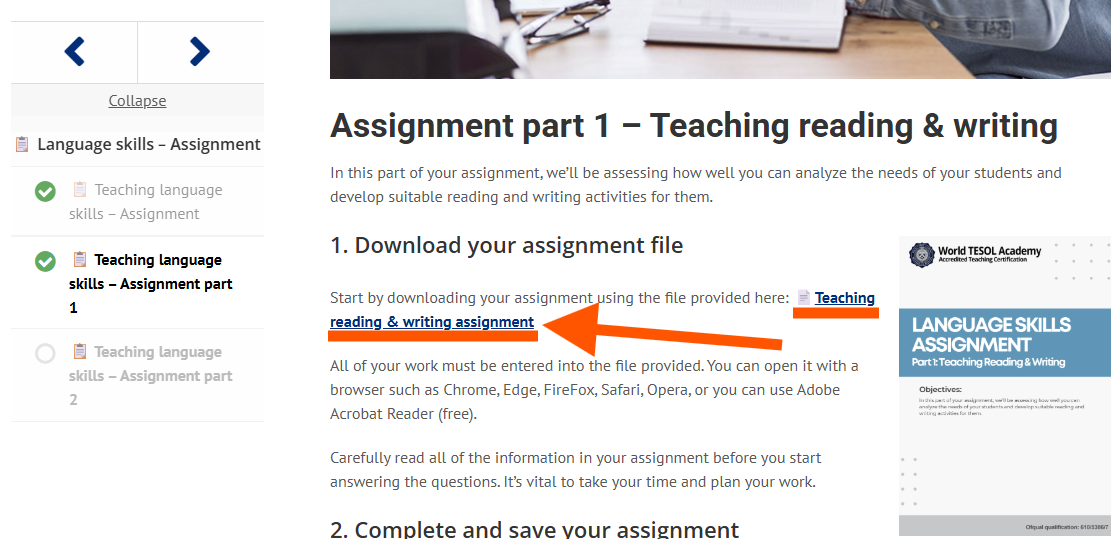
To open the file, you simply click the link on the page and it should open in your browser (Chrome/FireFox/Edge/Safari/Opera). You do not need to use any special tools like Adobe Acrobat. You should ensure that you just open the file in your browser.
2. Complete your assignment: When you open it, you’ll see the PDF file, and will be able to click on each box to type your answers in:
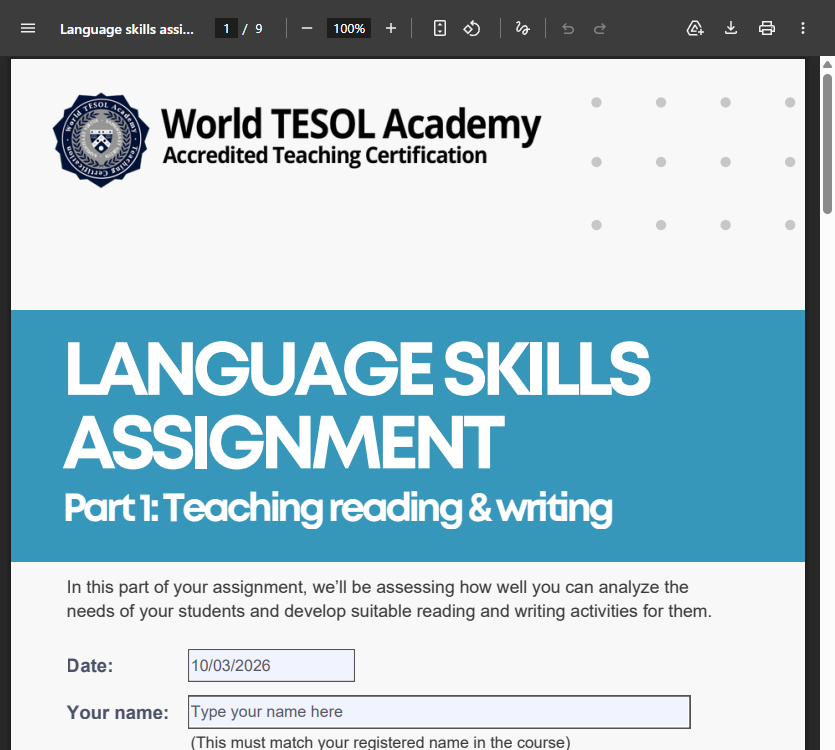
Make sure that you complete all of the questions in your assignment, select the correct date of your submission, and enter your name accurately.
3. Saving your assignment: After you have finished completing all of the tasks in your assignment, you will need to save the file.
To do this, you simply click the save button, and then select “with your changes” to ensure that you save the file with your answers entered into it.
It can help to save the file with your name. This will make it easier for you to locate the file.
4. Check your work before uploading it: Next, find the saved file and open it to make sure your work has all been saved.
5. Submitting it to be graded: When you’re ready to upload it, you can submit it through the website.
Each assignment page will have a form where you can upload the file. This will be located on the same page where you initially accessed the template file:
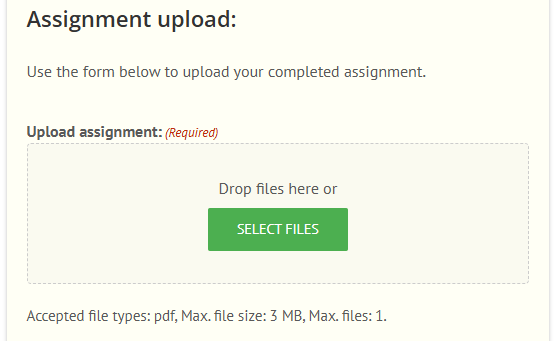
If you have any difficulties with this, then please contact a tutor on the site and we’ll be sure to help further.
How to save your assignment files
Completing and saving your assignments can all be done without any additional software.
If you’re studying our Level 5 Diploma in TESOL qualification, you’ll have a range of assignments to complete. These assignments are an opportunity to demonstrate your understanding and put your new skills to use. They’ve been designed so that you can complete them without the use of any additional software or tools – simply entering your answers using your browser.
1. Open the assignment template: When you reach each assignment, you’ll see a page like this:
To open the file, you simply click the link on the page and it should open in your browser (Chrome/FireFox/Edge/Safari/Opera). You do not need to use any special tools like Adobe Acrobat. You should ensure that you just open the file in your browser.
2. Complete your assignment: When you open it, you’ll see the PDF file, and will be able to click on each box to type your answers in:
Make sure that you complete all of the questions in your assignment, select the correct date of your submission, and enter your name accurately.
3. Saving your assignment: After you have finished completing all of the tasks in your assignment, you will need to save the file.
To do this, you simply click the save button, and then select “with your changes” to ensure that you save the file with your answers entered into it.
It can help to save the file with your name. This will make it easier for you to locate the file.
4. Check your work before uploading it: Next, find the saved file and open it to make sure your work has all been saved.
5. Submitting it to be graded: When you’re ready to upload it, you can submit it through the website.
Each assignment page will have a form where you can upload the file. This will be located on the same page where you initially accessed the template file:
If you have any difficulties with this, then please contact a tutor on the site and we’ll be sure to help further.
Find other answers:
Related topics: